

Designing websites with Elementor becomes dramatically faster when you master advanced layout techniques. Instead of building every section from scratch, experienced designers use reusable templates, flexbox containers, global widgets, and responsive controls to streamline their workflow.
These advanced Elementor layout tricks help you reduce repetitive work, maintain consistent design systems, and launch websites in a fraction of the time. Whether you’re creating landing pages, blog layouts, or full business websites, learning these strategies can significantly improve both design speed and layout flexibility.
In this blog post, you’ll discover 15 powerful Elementor layout tricks used by professional WordPress designers to build faster, smarter, and more scalable websites.
Why Advanced Elementor Layout Techniques Matter
Many beginners treat Elementor like a simple drag-and-drop tool. However, professionals use it as a design system builder.
Advanced layout strategies help you:
- Build pages 3–5x faster
- Maintain consistent design across the entire website
- Reduce unnecessary elements
- Improve website performance
- Create fully responsive layouts easily
When used properly, Elementor becomes a rapid website development tool rather than just a visual editor.
15 Advanced Elementor Layout Tricks for Faster Website Design
Here are 15 advanced layout tricks in Elementor that help designers work faster and build cleaner websites in WordPress.
1. Global colors and fonts
Setting global design settings at the start saves a huge amount of time. When colors and typography are defined globally, you can change the entire website’s design from one place instead of editing each widget individually.
2. Reusable templates
Instead of building the same sections repeatedly, you can save sections as templates. Hero areas, testimonials, call-to-action blocks, and pricing tables can be inserted into any page instantly, which speeds up page creation dramatically.
3. Flexbox containers
Using Elementor’s Flexbox containers instead of the older column system gives more control over alignment, spacing, and responsiveness. It also reduces nested elements, which keeps layouts cleaner and faster to edit.
4. Navigator panel
The Navigator tool lets you see the full structure of your page. Designers can quickly jump between sections, rename elements, and reorganize layouts without scrolling through long pages.
5. Custom CSS adjustments
Small layout tweaks are often easier with custom CSS than with extra widgets. Simple adjustments like negative margins or custom spacing can create advanced designs without adding unnecessary elements.
Example:
selector{
margin-top:-40px;
}
This helps create overlapping designs without complicated structures.
6. Copy and paste styles
Elementor allows you to copy the style settings of any widget and paste them onto another widget. This prevents repeating the same styling steps for colors, typography, spacing, and effects.
7. Personal section library
Professional designers usually maintain a personal library of reusable sections. Keeping ready-made headers, service sections, FAQ blocks, or portfolio layouts allows you to assemble pages quickly across different projects.
8. Subtle motion effects
Motion effects like fade-in animations or parallax backgrounds can make layouts more dynamic. When used carefully, they improve visual engagement without slowing down the site.
9. Negative margins for layered design
Negative margins allow elements to overlap each other. This technique is commonly used for modern hero sections, floating cards, and layered images that create depth in the layout.
10. Early responsive editing
Instead of finishing the desktop version first and fixing mobile later, experienced designers adjust tablet and mobile layouts during the design process. This prevents layout issues and saves time during final optimization.
11. Replace spacer widgets
Using too many spacer widgets can make a page structure messy. Padding, margins, and flex alignment usually provide better control while keeping the layout cleaner.
12. Z-Index layer control
Z-index allows elements to stack on top of each other. Designers often use it for placing text over images, creating floating design elements, or building layered card layouts.
13. Global widgets
When a widget is saved as a global widget, editing it once automatically updates it everywhere on the website. This is extremely useful for elements like contact boxes, promotional banners, or newsletter forms.
14. Keyboard shortcuts
Keyboard shortcuts help speed up editing significantly. Actions such as undo, redo, opening the navigator, or using the Finder tool reduce the need to navigate through menus.
15. Finder for instant navigation
Elementor’s Finder tool lets you instantly search for pages, templates, settings, or posts directly inside the editor. Instead of going back to the dashboard, you can jump to any part of the website within seconds.
Using these techniques together—especially templates, global styles, and flexbox containers—can reduce design time significantly while keeping Elementor layouts organized and scalable.
Pro Workflow for Faster Elementor Website Design
Professional designers typically follow this workflow:
- Define global design settings
- Build reusable section templates
- Use containers for layout structure
- Create global widgets for repeated elements
- Apply responsive adjustments last
This structured process ensures efficient and scalable website development.
Speed Up Elementor Design with Easy Elements for Elementor
If you want to design websites even faster with Elementor, using an addon plugin like Easy Elements can significantly enhance your workflow. Easy Elements extends Elementor with a collection of powerful widgets and design tools that eliminate the need to build many elements from scratch.
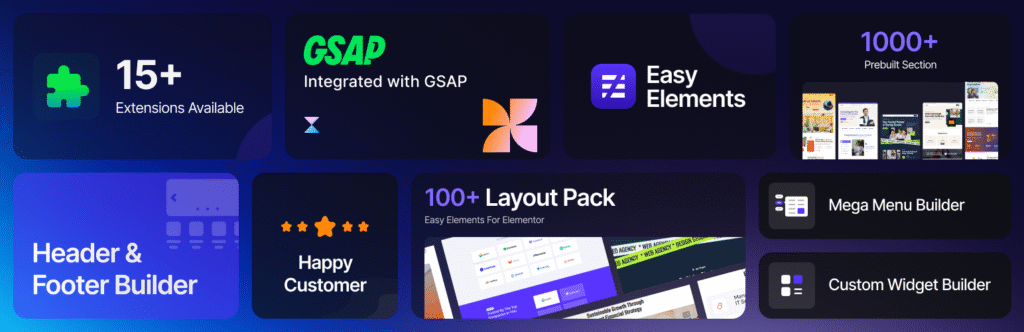
Instead of manually creating complex sections, Easy Elements provides ready-to-use widgets and layout components that help you design professional pages in minutes.
Why Easy Elements helps you design faster
Easy Elements focuses on improving the speed, flexibility, and functionality of Elementor websites. With additional widgets and customization features, designers can build advanced layouts without relying on multiple plugins.
Key benefits include:
- Access to advanced Elementor widgets
- Faster layout creation with pre-built elements
- Improved design flexibility
- Reduced development time
- Better user experience and visual effects
These features make Easy Elements an excellent tool for freelancers, agencies, and WordPress developers who want to deliver high-quality websites more efficiently.
Powerful widgets that accelerate website design
Easy Elements includes several widgets that can dramatically improve design productivity. For example:
- Reading Progress Bar – shows users how much content they have read, improving engagement on blogs and long-form pages.
- Advanced UI elements for building modern landing pages
- Interactive design components for better user experience
By using these widgets, designers can add advanced functionality without writing custom code.
Perfect for landing pages and content websites
Whether you are building:
- blog pages
- landing pages
- marketing websites
- business websites
Easy Elements helps you add interactive features and professional layouts quickly.
Instead of installing multiple plugins for different features, Easy Elements consolidates everything into a single lightweight solution for Elementor users.
Why designers choose Easy Elements
Many Elementor designers prefer Easy Elements because it provides the perfect balance between simplicity and advanced functionality. It allows you to build visually appealing pages while maintaining a fast workflow.
When combined with the advanced layout tricks discussed earlier, Easy Elements can help you build Elementor websites significantly faster while delivering a more engaging user experience.
Conclusion
Mastering advanced Elementor layout tricks can dramatically transform how quickly you build WordPress websites. Instead of manually designing every page element, you can rely on containers, reusable templates, global widgets, and responsive controls to streamline the process.
By implementing these techniques, you’ll create cleaner layouts, faster workflows, and more scalable websites—all while maintaining professional design quality.
Whether you’re a freelancer, agency designer, or WordPress developer, these Elementor strategies will help you design smarter and launch websites faster.
Frequently Asked Questions (FAQs)
What are advanced Elementor layout tricks?
Advanced Elementor layout tricks include using containers, reusable templates, global widgets, responsive design controls, and dynamic content to build websites faster.
How can I design websites faster with Elementor?
You can design faster by using template libraries, global styles, copy-paste styling, and reusable widgets.
What are Elementor containers?
Containers are Elementor’s modern layout system based on flexbox, allowing flexible and efficient page structures.
Is Elementor good for professional web design?
Yes, Elementor is widely used by professional designers because it provides advanced layout control and responsive editing tools.
How do global widgets work in Elementor?
Global widgets allow you to reuse elements across multiple pages, and edits update everywhere automatically.
Does Elementor support responsive design?
Yes, Elementor provides device-specific editing for desktop, tablet, and mobile layouts.
What is the Elementor Navigator?
Navigator is a panel that displays the page structure and helps designers quickly manage sections and widgets.
Can Elementor build complex layouts?
Yes, nested containers and dynamic content features allow Elementor to create advanced layouts.
What is the fastest Elementor workflow?
The fastest workflow involves global styles, reusable templates, container layouts, and responsive optimization.
Why should designers use Elementor templates?
Templates reduce design time and ensure consistent layouts across pages.