


Every WordPress developer hits this moment: the theme is almost perfect, but one template needs to change. The product page layout is wrong. The footer markup is messy. A plugin outputs HTML you can’t style.
So you open the theme folder, find the file, and edit it directly.
Three weeks later the theme updates, your changes vanish, and the client is emailing you at 11 PM. I’ve watched this happen on more sites than I can count — and it’s completely avoidable.
Overriding templates the right way isn’t hard. It just requires understanding where WordPress looks for files and which mechanism fits the job. Let’s walk through it properly.
The One Rule That Saves You Every Time
Never edit a parent theme or a plugin’s files directly.
That’s it. That’s the rule. Anything you change inside wp-content/themes/storefront/ or wp-content/plugins/woocommerce/ is gone the moment that theme or plugin updates. No warning, no recovery.
Everything below is just a structured way of obeying that rule.
First, Understand How WordPress Finds Templates
Before overriding anything, you need to know how WordPress decides which template to load. This is the template hierarchy, and it’s the whole game.
When someone visits a single blog post, WordPress doesn’t just grab index.php. It looks for the most specific file first and falls back to more general ones:
single-post-{slug}.php → single-post.php → single.php → singular.php → index.php
The first file it finds wins. This is why overriding works at all — if you provide a more specific (or higher-priority) version of a template, WordPress uses yours instead of the default.
Two locations matter for priority:
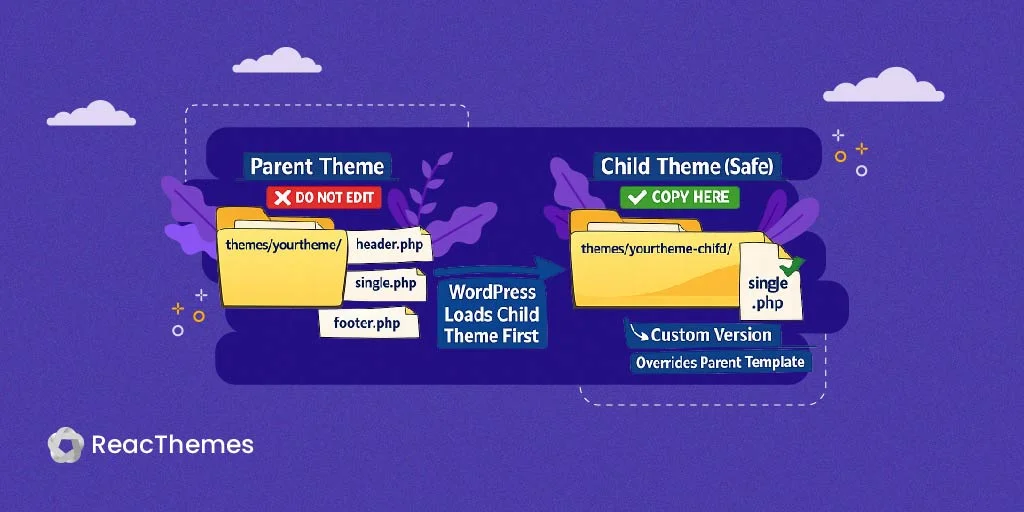
- The child theme is checked before the parent theme.
- For plugin templates, a designated theme folder is checked before the plugin’s own folder (more on this below).
Override correctly = put your file where WordPress looks first.
Method 1: Child Themes (Classic Themes)
If you’re working with a classic (PHP-based) theme, a child theme is the canonical answer. It’s a separate theme that inherits everything from its parent but lets you override individual files.
Set It Up
Create a new folder in wp-content/themes/, for example storefront-child/, with two files.
style.css — the header is what makes it a child theme. The Template: line must exactly match the parent theme’s folder name:
/*
 Theme Name:   Storefront Child
 Template:     storefront
 Version:      1.0.0
*/
functions.php — load the parent and child stylesheets:
<?php
add_action( 'wp_enqueue_scripts', 'storefront_child_styles' );
function storefront_child_styles() {
    wp_enqueue_style(
        'parent-style',
        get_template_directory_uri() . '/style.css'
    );
    wp_enqueue_style(
        'child-style',
        get_stylesheet_directory_uri() . '/style.css',
        array( 'parent-style' ),
        wp_get_theme()->get( 'Version' )
    );
}
Activate the child theme. Your site looks identical — because it is identical until you override something.
Override a Template
Say you want to change page.php. Copy it from the parent theme into the child theme, keeping the same path:
wp-content/themes/storefront/page.php
          ↓ copy
wp-content/themes/storefront-child/page.php
Now edit the child’s copy. WordPress finds it first and ignores the parent’s version. The parent can update freely; your override stays put.
The same logic applies to template parts in subfolders — mirror the structure exactly:
storefront/template-parts/content.php
          ↓ copy
storefront-child/template-parts/content.php
Tip: Only copy the files you actually intend to change. Every file you copy is a file you now have to maintain. An override is a commitment — keep the list short.
Method 2: Block Themes (Full Site Editing)
Modern themes (Twenty Twenty-Four, Twenty Twenty-Five, and most new releases) are block themes, and the rules are different. Templates here are .html files made of block markup, not PHP.
your-block-theme/
├── templates/      ← full templates: index.html, single.html, page.html
├── parts/          ← reusable parts: header.html, footer.html
├── patterns/
└── theme.json      ← global styles & settings
You have three ways to override, in increasing order of “developer-ness”:
1. The Site Editor (no code). Go to Appearance → Editor, open a template or part, and edit it visually. WordPress saves your changes to the database as a custom wp_template / wp_template_part entry. This is important: database customizations override the theme’s files. Great for clients, but the changes don’t live in version control — keep that in mind on team projects.
2. File-based overrides in a child block theme. Same principle as classic child themes. Drop a same-named file into your child theme’s templates/ or parts/ folder and it wins over the parent’s:
parent-theme/templates/single.html
          ↓ copy into child
child-theme/templates/single.html
3. theme.json for styling. Don’t override a whole template just to change colors, spacing, or typography. A child theme’s theme.json lets you adjust global styles and settings cleanly, without touching markup at all.
The precedence chain to remember: Site Editor (DB) → child theme files → parent theme files.
Method 3: Overriding Plugin Templates (the WooCommerce Pattern)
This is where most developers go wrong. Plugins like WooCommerce ship their own templates, and you override those from your theme — not by editing the plugin.
WooCommerce checks your active theme for a woocommerce/ folder before falling back to its own templates. To override the product title template:
wp-content/plugins/woocommerce/templates/single-product/title.php
          ↓ copy to
wp-content/themes/your-theme/woocommerce/single-product/title.php
The subfolder path after templates/ must match exactly. Edit your copy, and WooCommerce loads it instead.
Two things experienced devs always do here:
- Check WooCommerce → Status. It lists every template override and flags any that are outdated — meaning the plugin updated its version of that file and yours may now be missing markup or breaking. Outdated overrides are the #1 cause of mysterious WooCommerce bugs.
- Re-audit overrides after major plugin updates. An override you copied two years ago is frozen in time while the plugin moves on. Keep them in sync.
Not every plugin supports this. The pattern only works if the plugin author built a template loader for it — which brings us to the part most tutorials skip.
If You Build Plugins: Make Them Override-Friendly
If you ship your own plugins, you should let other developers override your templates the same way WooCommerce does. It’s a small amount of code and it earns enormous goodwill.
The trick is a loader that checks the active theme first, then falls back to your plugin:
<?php
/**
 * Load a template, allowing theme overrides.
 *
 * @param string $template_name e.g. 'booking/form.php'
 * @param array  $args          Variables to expose to the template.
 */
function myplugin_get_template( $template_name, $args = array() ) {
    if ( ! empty( $args ) && is_array( $args ) ) {
        extract( $args ); // phpcs:ignore
    }

    // 1. Look in the active theme: /myplugin/{template_name}
    $template = locate_template( array( 'myplugin/' . $template_name ) );

    // 2. Fall back to the plugin's own templates folder.
    if ( ! $template ) {
        $template = MYPLUGIN_PATH . 'templates/' . $template_name;
    }

    if ( file_exists( $template ) ) {
        include $template;
    }
}
Now anyone can override your booking/form.php by dropping a file at themes/their-theme/myplugin/booking/form.php. You’ve made your plugin extensible without anyone editing your source. Add a filter on the final $template path too, so developers can redirect it programmatically.
The Better Question: Should You Override at All?
Here’s the mindset that separates a senior developer from someone who just knows the mechanics: overriding an entire template is often the wrong approach.
Every override is a copy you must maintain forever. The original gets updates — security patches, accessibility fixes, new features — and your frozen copy doesn’t. So before you copy a file, ask whether a hook can do the job instead.
WordPress and well-built plugins are full of actions and filters designed exactly for this:
// Add a notice above the WooCommerce add-to-cart button —
// no template override needed.
add_action( 'woocommerce_before_add_to_cart_form', function () {
    echo '<p class="ships-fast">Ships within 24 hours</p>';
} );
That single snippet survives every plugin update untouched. Compare that to copying and maintaining single-product/add-to-cart/simple.php.
Rule of thumb: If a hook or filter can make the change, use it. Override the full template only when you genuinely need to restructure the markup.
Common Mistakes I See Constantly
- Editing the parent theme or plugin directly. The original sin. Updates erase it.
- Copying the entire plugin templates folder “just in case.” Now you have 40 frozen files, 38 of which you didn’t need, all silently going stale.
- Wrong
Template:slug in a child theme’sstyle.css— it must match the parent folder name exactly, case included. - Forgetting block-theme DB precedence. A change made in the Site Editor overrides your carefully version-controlled template file, and you spend an hour wondering why your edits “aren’t working.”
- Never re-auditing overrides after updates. WooCommerce’s status page exists for a reason — check it.
- Overriding when a hook would do. More maintenance burden for no reason.
The Checklist: How to Override Theme Templates Correctly in WordPress
Before you override anything, run through this:
✅ Am I working in a child theme or a theme-level plugin override folder — never the original?
✅ Can a hook or filter achieve this instead of a full template copy?
✅ Am I copying only the files I need, with their paths mirrored exactly?
✅ Have I noted these overrides somewhere so I’ll re-check them after the next update?
Get these right and template overriding stops being scary. Your customizations survive updates, your sites stay maintainable, and you never get that 11 PM email again.
Override with intent, not with a text editor and a prayer.