



Have you ever tried installing a new WordPress theme only to be greeted with the frustrating message, “The theme is missing the style.css stylesheet”? This common error can stop your website setup in its tracks, leaving many beginners wondering if they downloaded the wrong theme or accidentally broke their WordPress installation.
The problem is that this error usually doesn’t mean the theme is actually missing its style.css file. In most cases, it’s caused by uploading the wrong ZIP file, installing an incompatible package, or using a theme that wasn’t packaged correctly. Without knowing the real cause, you can waste hours trying different fixes that don’t solve the issue.
The good news is that this error is one of the easiest WordPress theme installation problems to fix once you know what to look for.
In this guide, we’ll explain why the “The theme is missing the style.css stylesheet” error appears, walk you through the most common causes, and show you step-by-step solutions to get your theme installed successfully in just a few minutes.
How Error Sign Looks Like
If you are trying to install a WordPress theme and see the error message “The package could not be installed. The theme is missing the style.css stylesheet”, don’t worry. This is one of the most common WordPress theme installation errors.
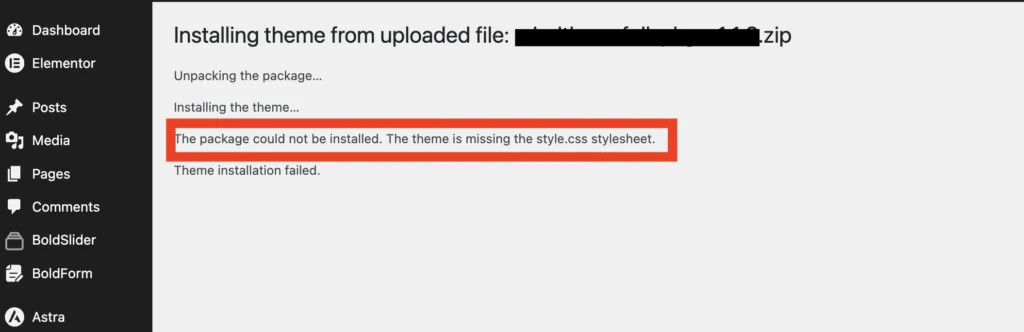
In most cases, this error does not mean the theme is broken. It usually means you are uploading the wrong ZIP file.
What Does “The Theme Is Missing the style.css Stylesheet” Mean?
Every WordPress theme requires a style.css file located in the theme’s root directory. This file contains:
- Theme name
- Author information
- Version details
- Theme description
- CSS styling for the website
Without this file, WordPress cannot recognize a folder as a valid theme. As a result, it displays the error:
The package could not be installed. The theme is missing the style.css stylesheet.
However, this message is often misleading because the stylesheet usually exists—the issue lies elsewhere.
Why Does This Error Occur?
Here are the most common reasons:
1. You’re Uploading the Wrong ZIP File
This is the #1 cause.
Many premium themes from marketplaces like ThemeForest include:
- Documentation
- Licensing files
- Demo content
- Plugins
- The actual theme ZIP
If you upload the entire package instead of the theme ZIP, WordPress cannot find the required style.css file.
2. You’re Trying to Upload a Plugin as a Theme
Some users accidentally upload a plugin ZIP through:
Appearance → Themes → Add New
Instead, plugins should be installed from:
Plugins → Add New
Since plugins don’t contain a theme stylesheet, WordPress reports the error.
3. The ZIP File Was Extracted Incorrectly
Sometimes users unzip the theme, modify its folder structure, then compress it again incorrectly.
WordPress expects this structure:
theme-name/
│
├── style.css
├── functions.php
├── index.php
├── screenshot.png
└── assets/
If style.css isn’t in the root folder, installation fails.
4. The Theme Download Is Corrupted
An interrupted download or damaged archive may remove essential files.
This is uncommon but possible.
5. The Theme Isn’t Designed for WordPress
Some templates are made for:
- HTML
- Bootstrap
- React
- Vue
- Shopify
- Joomla
These aren’t WordPress themes and therefore don’t include the required stylesheet.
How to Fix the Missing style.css Stylesheet Error
1. Download the Correct Theme File
If you purchased the theme from ThemeForest, go to your downloads section and choose:
Installable WordPress file only

This is the correct ZIP file to upload to WordPress.
Avoid uploading the file named something like:
All files and documentation
That package usually contains extra files and may not be directly installable.
2. Extract the Full Package ZIP
If you have already downloaded the full package, unzip it on your computer first.
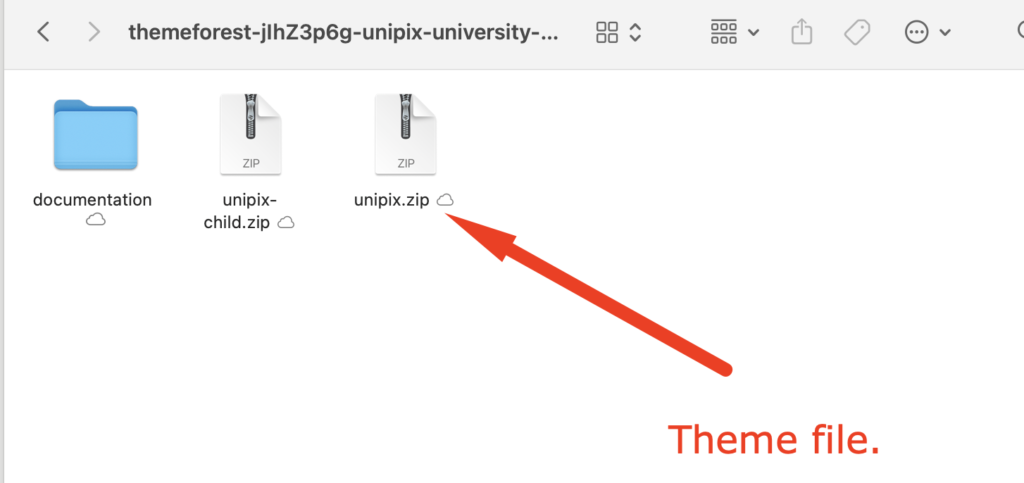
After extracting, look for the main theme ZIP file. It may look like:
theme-name.zip example unipix.zip
You may also see other files and folders, such as:
theme-name-child.zip
documentation
plugins
demo-content
The file you need to upload is usually the main theme ZIP file, not the full package ZIP.
3. Upload the Correct ZIP File to WordPress
Now go to your WordPress dashboard and follow these steps:
Go to Appearance → Themes
Click Add New
Click Upload Theme
Choose the correct theme ZIP file
Click Install Now
Activate the theme
If you selected the correct file, the theme should install without the missing stylesheet error.
Wrong File vs Correct File
Wrong file example:
themeforest-full-package.zip
This file may include documentation, plugins, demo content, and other files. It is not always the installable WordPress theme file.
Correct file example:
theme-name.zip
This is the actual WordPress theme file that includes the required theme files.
Other Possible Reasons
Although uploading the wrong ZIP file is the most common reason, this error can also happen for other reasons.
i. The File Is Not a WordPress Theme
Sometimes users accidentally upload an HTML template, plugin, or documentation file instead of a WordPress theme.
A WordPress theme and an HTML template are not the same. An HTML template cannot be installed from the WordPress theme uploader.
ii. The ZIP File Structure Is Incorrect
The ZIP file must contain the theme folder with the required WordPress theme files. If the structure is incorrect, WordPress may not detect the theme properly.
iii. The Theme Package Is Damaged
If the download was interrupted or the ZIP file is corrupted, WordPress may fail to install it. Download the theme again and try uploading it.
iv. You Are Uploading the Child Theme First
If the theme includes a child theme, install the main parent theme first. After that, you can install and activate the child theme.
How to Check Whether a Theme Is Valid
Before uploading, extract the ZIP.
A proper WordPress theme usually contains:
theme-name/

style.css
functions.php
index.php
header.php
footer.php
sidebar.php
screenshot.png
If these files are missing, the package probably isn’t a WordPress theme.
How to Install a ThemeForest WordPress Theme Correctly
If your theme is from ThemeForest, the easiest method is:
- Log in to your ThemeForest account
- Go to Downloads
- Find your purchased theme
- Click Download
- Select Installable WordPress file only
- Upload that ZIP file from your WordPress dashboard
This method usually fixes the missing style.css stylesheet error immediately.
Still Seeing the Error?
If you still see the error after uploading the correct file, check the following:
- Make sure you are uploading a WordPress theme, not an HTML template or plugin.
- Download the theme file again.
- Extract the package and find the correct installable ZIP file.
- Check if style.css exists inside the theme folder.
- Contact the theme author or support team if you are unsure which file to upload.
Final Thoughts
Seeing the “The theme is missing the style.css stylesheet” error can be frustrating, but it’s rarely caused by a missing stylesheet. In most cases, the issue comes down to uploading the wrong ZIP file, selecting a plugin instead of a theme, or using an incorrectly packaged archive.
Before trying advanced troubleshooting, simply inspect the ZIP file and confirm that style.css is located in the theme’s root folder. This quick check resolves the vast majority of installation issues. By following the steps in this guide, you’ll be able to install your WordPress theme successfully and get your website up and running without unnecessary delays.
Frequently Asked Questions (FAQs)
Why can’t WordPress find style.css?
Usually because you’re uploading the wrong ZIP file, not because the stylesheet is actually missing.
Can I create my own style.css?
Yes.
If you’re developing a custom theme, WordPress requires a valid style.css file with the correct theme header.
Is the stylesheet the same as CSS?
The style.css file is the primary CSS file for WordPress themes, but it also contains metadata that identifies the theme.
Does every WordPress theme require style.css?
Yes.
Without it, WordPress won’t recognize the folder as a valid theme.
Why does ThemeForest cause this issue?
ThemeForest often provides a complete download package containing documentation, plugins, licenses, and the actual theme ZIP. Uploading the entire package instead of the theme ZIP triggers this error.